NewsWorld of WarcraftWorld of Warcraft: Forever
Blizzard details Discord account linking and guild chat mirroring for World of Warcraft
Blizzard has detailed Discord account linking for WoW and WoW: Forever, so guild chat messages can pass between the game and a Discord channel.
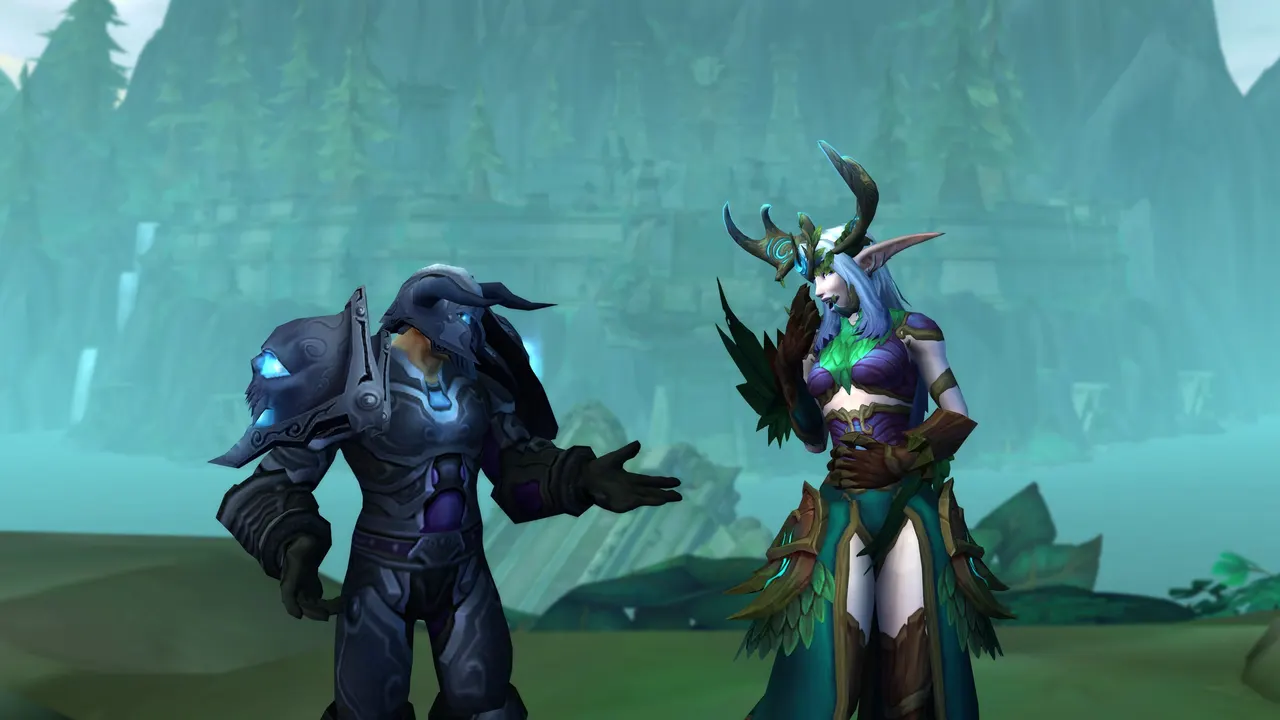
Blizzard has announced Discord account linking and guild chat mirroring for modern World of Warcraft and World of Warcraft: Forever. Once it’s set up, messages sent in your guild chat appear in a Discord channel, and the reverse is true too, so you can keep up with your guild whether you’re in the game or not.
Linking your accounts
Open the Game Menu (Escape), go to Options, then the Social tab. A new option there lets you enable Discord functionality, which ties your Discord account to your Battle.net account.
Blizzard says you’ll be taken through a few extra screens to finish the connection. Log into Discord first, as it will ask you to confirm the link.
Setting up a guild channel
Whoever administers the guild’s Discord server needs to turn on three channel permissions first: Manage Channels, View Channel and Send Messages.
After that, the guild leader or officers with the right permissions can do the rest inside the game:
- Press J to open the Guild & Communities window and pick the Roster tab.
- Choose Guild Settings at the bottom right.
- Under the Guild Control dropdown, select Discord Settings.
- Pick a Discord server, choose a linkable channel from the dropdown and click the link.
Blizzard also says you can create a separate Discord chat as its own channel within the game.
How chat works
Messages from Discord are easy to tell apart from in-game ones, and you can adjust your chat tabs to suit. Players who haven’t linked their account won’t have their in-game messages shown in the Discord chat.
You can pick the name shown when your Discord messages arrive in game, using the Display Name dropdown:
- Default: the game’s default, currently Last Online Character.
- Last Online Character Name: the last character you played on your Battle.net account in that guild.
- Discord Global Name: your Global Name from Discord.
Guild leaders can change the settings at any time, sending Discord traffic either to the regular /guild channel or to a new dedicated /discord guild channel.